Convert EasyEDA to Altium, and Altium to EasyEDA
Konium Designer converts both ways. It reads EasyEDA Standard and Pro projects and libraries and saves them as .SchDoc, .PcbDoc and library files, and it writes an Altium Designer project as EasyEDA Standard source files or as an EasyEDA Pro project. It is free, with no account, and it runs on your own computer, so the design is not uploaded anywhere.
EasyEDA to Altium
- Open konium.app/app in Chrome or Edge on Windows, macOS or Linux, or install Konium Designer first.
- Choose File › Import Wizard. Under Select Type of Files to Import, choose EasyEDA Design Files and Libraries.
- Click Add Folder... to take the design's folder with everything it uses, or Add Files... for single files.
- Under Output Folder, click Browse... to choose where the converted project is saved. Left empty, the project opens unsaved.
- Click Import. The project opens, and the import's report goes to the Messages panel.
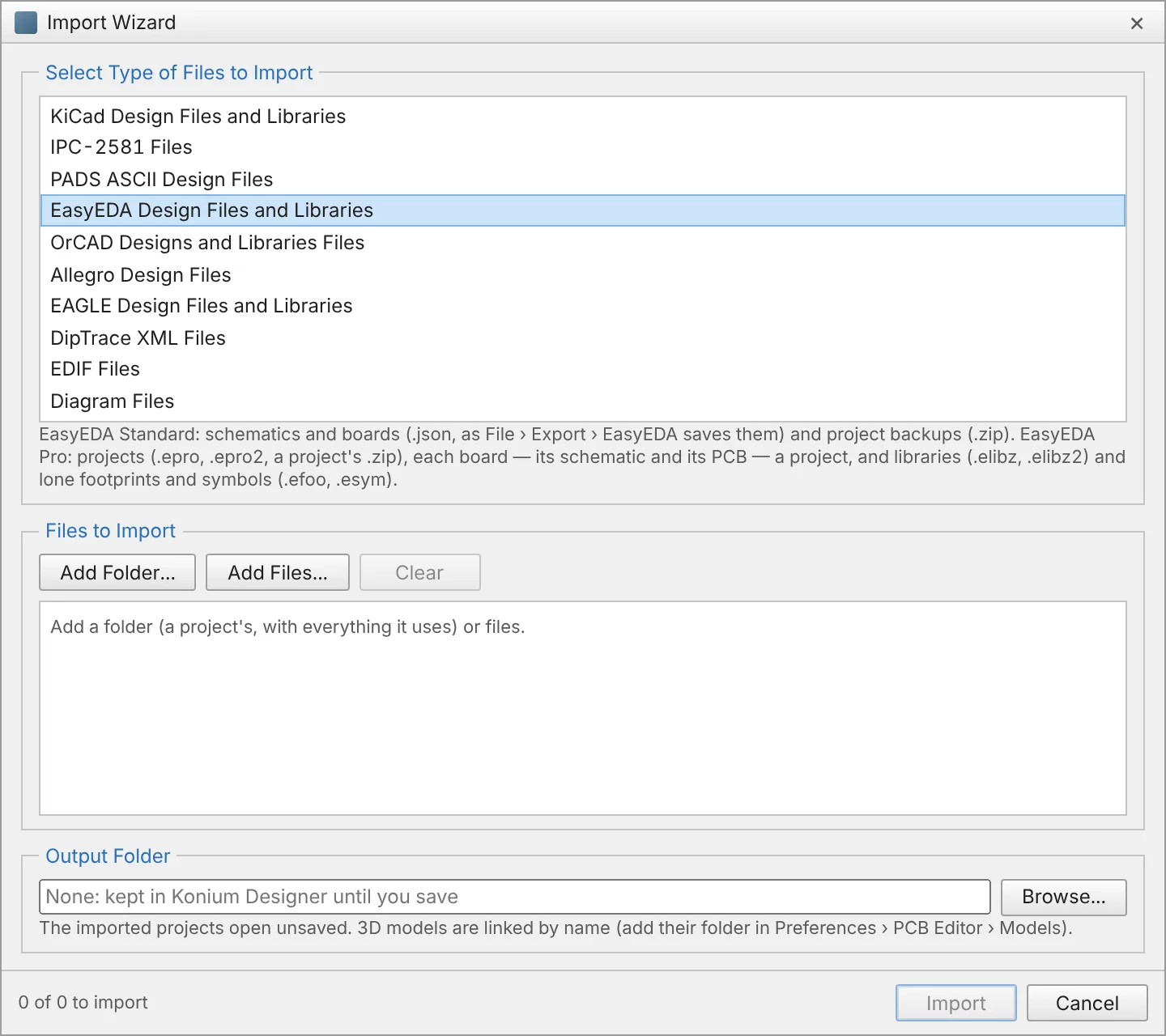
What comes in. EasyEDA Standard schematics, boards and project backups; EasyEDA Pro projects (each board a project), libraries, footprints and symbols. The files: .json, .zip, .epro, .epro2, .elibz, .elibz2, .efoo, .esym.
The converted project is in Altium Designer's formats: a .PrjPcb project with its .SchDoc schematics and its .PcbDoc board, and .SchLib and .PcbLib libraries beside it. Dropping the files on the window does the same as the wizard.
Altium to EasyEDA
- Open konium.app/app in Chrome or Edge on Windows, macOS or Linux, or install Konium Designer first.
- Open the Altium Designer project: drop its folder on the window, or choose File › Open Project... and pick the .PrjPcb file.
- Choose File › Export Wizard. Under Select Type of Files to Export, choose EasyEDA Source Files or EasyEDA Pro Project.
- Under What to Export, tick Schematics, PCB and Libraries as wanted.
- Under Output Folder, click Browse... to choose a folder, where the files go in a folder named after the project. Left empty, they download as one zip.
- Click Export. The Messages panel lists what was written and anything left out.
EasyEDA Source Files. EasyEDA Standard source files (.json): the schematics as one schematic, and the board. Harnesses, images and directives are left out.
EasyEDA Pro Project. An EasyEDA Pro project (.epro): a page for each sheet, the board, and the symbols, footprints and devices they use; every wire named by its net, power ports as net flags, ports as net ports, pours with their poured copper. Harnesses, images and directives are left out.
EasyEDA Pro imports the .epro file with File › Import › EasyEDA Professional.
There and back
| Tool | Reads | Writes | Read and written back |
|---|---|---|---|
| EasyEDA | Standard and Pro projects and libraries | Standard source files, or a Pro project (.epro) | Read back in, a Pro export keeps every part, net, pad, via, pour and routed length. Not yet tried in EasyEDA Pro itself. |
"Not yet tried" means the files have been checked by reading them back into Konium Designer and against the tool's own format, but not yet by opening them in that tool.
Good to know
- 3D models are linked by name: add their folder in Preferences › PCB Editor › Models.
- Other tools convert the same way: Formats lists them all.
Get Konium Designer
It is free, with no account. Install it from Chrome or Edge, keep it as one file, or try it in a browser tab. Version 26.209.